
In my profession, I regularly work with Veeam and have successfully completed several backup-related projects.
This backup concept is designed to be suitable for productive use, although currently implemented in a lab environment. Due to this lab context, there are specific constraints and adjustments. For example, deploying a dedicated physical backup server would be recommended for optimal security and performance in production.
Structure of the Backup System
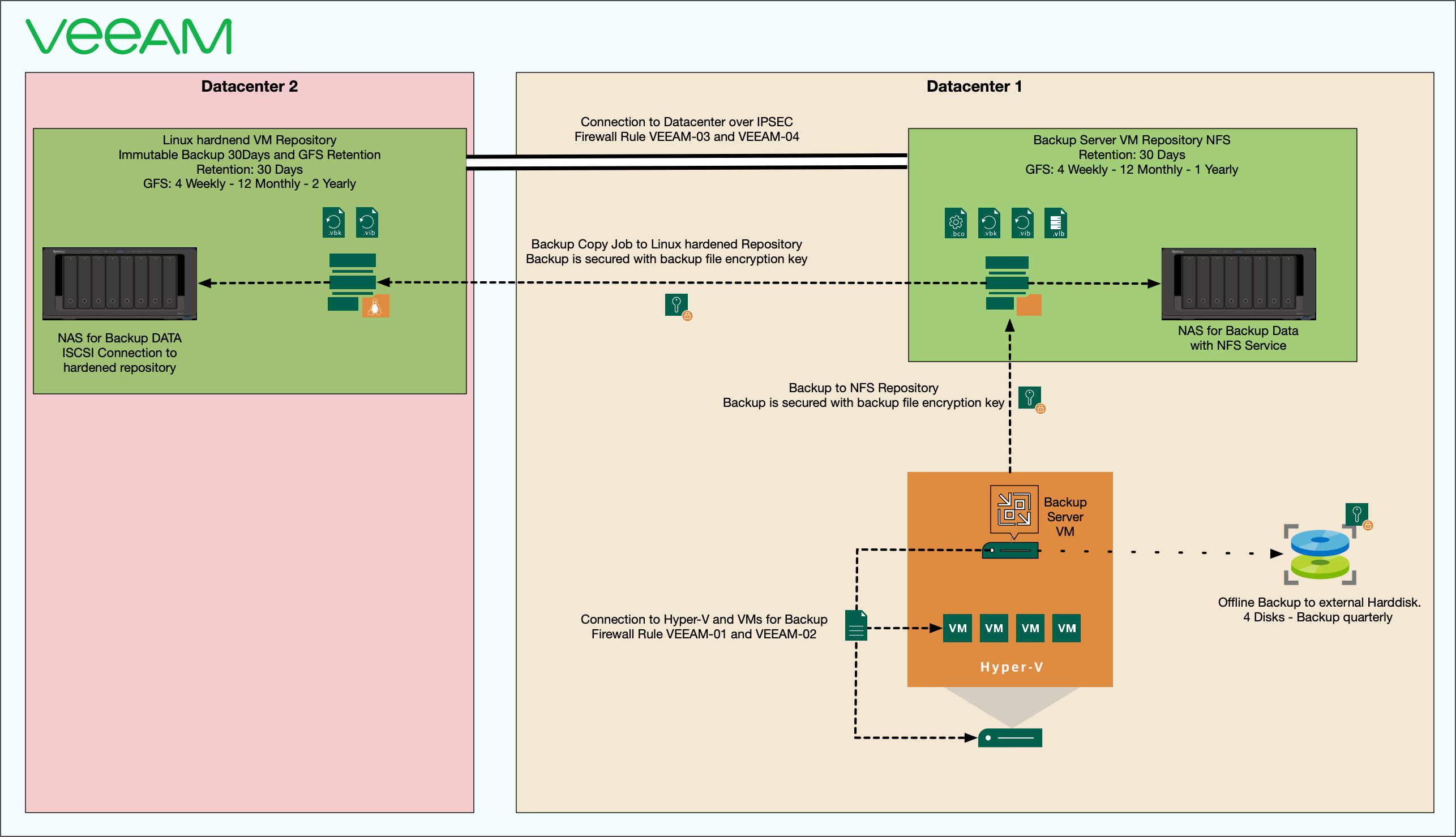
This concept utilizes a centralized backup infrastructure hosted on Hyper-V with dedicated virtual machines. It includes several repository types:
- NFS Repository and Backup Server: A Backup Server VM (ideally a dedicated physical server in production) with a retention period of 30 days and a long-term GFS (Grandfather-Father-Son) retention policy consisting of 4 weekly, 12 monthly, and 1 yearly backup.
- Hardened Linux Repository: Immutable backups with a retention period of 30 days, providing enhanced security and a long-term GFS schedule (4 weekly, 12 monthly, and 2 yearly backups).
- Offline Backup: Quarterly backups to external hard disks, rotated across 4 drives, ensuring redundancy, physical separation, and protection against hardware failures and ransomware attacks.
Secure Communication and Data Protection
Communication between systems adheres to stringent security measures:
- Backup data is encrypted at rest using Veeam’s built-in encryption for both primary repositories and backup copy jobs.
- NAS storage is connected to the Linux repository via iSCSI.
- Secure connections between different sites are established via IPSEC.
- Immutable backups are implemented, adding another security layer against unauthorised modifications or deletions.
- Use of offline Backups and different locations.
Firewall Rules and Security
The backup infrastructure, including repositories and servers, is intentionally configured without direct internet access to enhance security. Two dedicated firewall rules, disabled by default, are temporarily enabled only when required for updating Veeam and Synology software. All other software updates are managed via the Endpoint Central patching server, which is the only authorized system permitted to connect directly to the Veeam server. All other connections originate solely from the Veeam server itself. A deny rule is implemented at the end of the firewall ruleset to block any other unauthorized traffic.
Backup Testing and Compliance
This backup concept strictly complies with Veeam’s recommended best practices and fully meets the 3-2-1 backup rule.

- Three Copies of Data: Maintain three separate data copies.
- Two Different Media Types: Utilize various storage media such as NFS-connected NAS in Datacenter 1, iSCSI-connected NAS and Linux hardened repository in Datacenter 2, and additional external hard disks.
- One Off-Site Copy: Securely stored backups in multiple physical locations.
- Offline or Immutable Copy: Immutable backups stored on the Linux hardened repository and quarterly offline backups on external hard disks to prevent ransomware threats.
Implementing and thoroughly testing this backup concept in a lab environment provides a robust foundation, ready for scaling and adapting seamlessly to a full-scale production environment.
Configuration Examples
Example Palo Alto Firewall Rules


Veeam
Veeam Security and Compliance Analyzer (Suppressed due to Community Free Edition limitations)

Suppressed

MFA and password-loss protection not available in Community Free Edition; I recommend using a password manager like Bitwarden, with passwords physically stored on an encrypted USB stick.
Hardened repositories currently implemented as a VM in the lab; a physical server is recommended for production.
Backup services run under a dedicated service account rather than the LocalSystem account for enhanced security.
In my lab, Backup encryption passwords are alphanumeric and not include special characters. I use a length of at least 30 characters for optimal security.
Encryption connection


Encryption Password

Links, Products and References
Veeam Script Security and Compliance