I use for web hosting Cyon, which simplifies the certificate renewal process for the GlobalProtect portal since I only need to maintain scripts for one provider.
I use acme.sh together with a Bash script, which is setup as a cronjob on a Ubuntu Linux server to run every two months.
On the Palo Alto firewall, I have created a user with special permissions to handle the certificate updates. This user is specified within the script.
Architecture
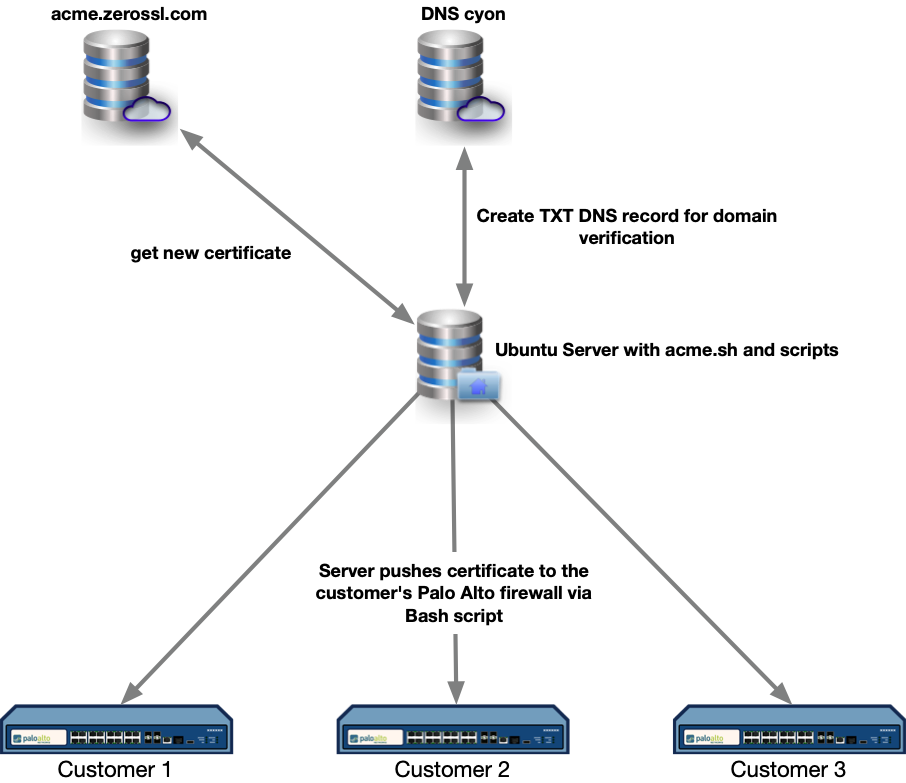
Configuration Details:
Install acme.sh:
wget -O - https://get.acme.sh | sh -s email=my@example.comConfigure for Cyon DNS:
export CY_Username="your_cyon_username"
export CY_Password="your_cyon_password"
Configure Palo Alto User:
CLI
set mgt-config users cert permissions role-based custom profile Cert
show shared admin-role Cert
set shared admin-role Cert role device webui
set shared admin-role Cert role device xmlapi commit enable
set shared admin-role Cert role device xmlapi import enable
set shared admin-role Cert role device restapi
GUI
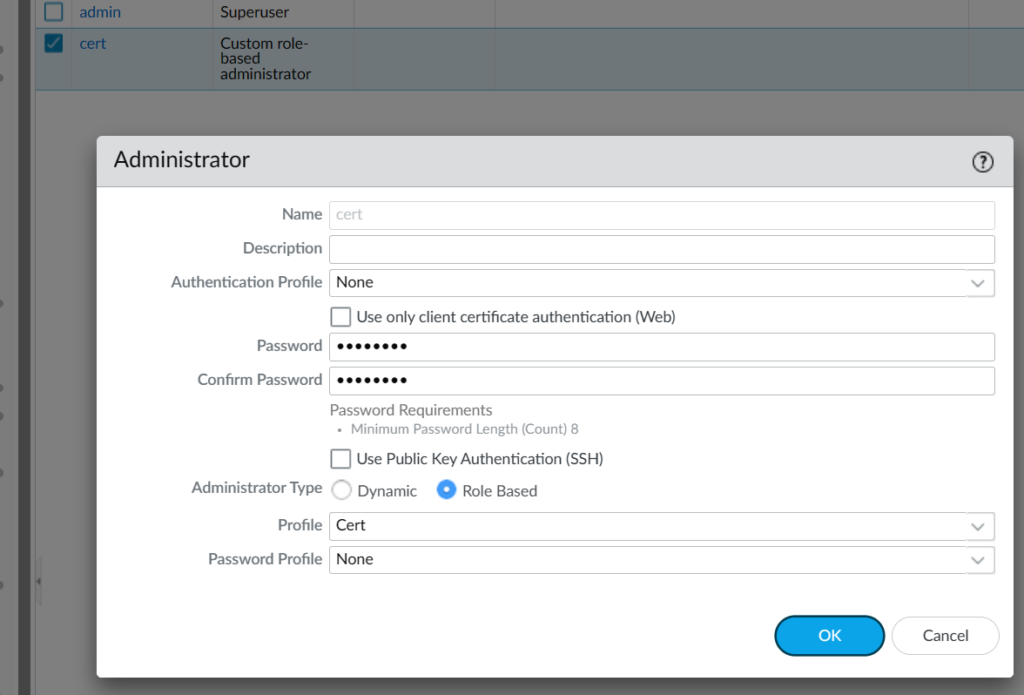

Bash Script Setup:
Create a script file for each firewall under acme.sh:
administrator@myserver:~/.acme.sh$ sudo vim cert_renew-simple-designer.shScript for simple-designer.ch:
#!/usr/bin/env bash
export PANOS_USER="cert"
export PANOS_PASS="mypassword"
export PANOS_HOST="1.1.1.1" //ip or hostname

/home/yourusername/.acme.sh/acme.sh --issue --dns dns_cyon -d gp.simple-designer.ch --dnssleep 300 --force
/home/yourusername/.acme.sh/acme.sh --deploy -d gp.simple-designer.ch --deploy-hook panos --insecure --force
Example Script for other customer/firewall:
administrator@myserver:~/.acme.sh$ sudo vim cert_renew-othercustomer.sh

#!/usr/bin/env bash
export PANOS_USER="cert"
export PANOS_PASS="mypassword"
export PANOS_HOST="1.2.2.2" //ip or hostname

/home/yourusername/.acme.sh/acme.sh --issue --dns dns_cyon -d gp.mycustomer.ch --dnssleep 300 --force
/home/yourusername/.acme.sh/acme.sh --deploy -d gp.mycustomer.ch --deploy-hook panos --insecure --force
Testing the Script:
administrator@u-duo-proxy:~/.acme.sh$ bash cert_renew-simple-designer.shOutput
[Fri Apr 19 11:52:38 AM UTC 2024] Using CA: https://acme.zerossl.com/v2/DV90
[Fri Apr 19 11:52:38 AM UTC 2024] Create account key ok.
[Fri Apr 19 11:52:38 AM UTC 2024] No EAB credentials found for ZeroSSL, let’s get one
[Fri Apr 19 11:52:41 AM UTC 2024] Registering account: https://acme.zerossl.com/v2/DV90
[Fri Apr 19 11:52:42 AM UTC 2024] Registered
[Fri Apr 19 11:52:42 AM UTC 2024] ACCOUNT_THUMBPRINT=’xxxxxxxx’
[Fri Apr 19 11:52:42 AM UTC 2024] Creating domain key
[Fri Apr 19 11:52:42 AM UTC 2024] The domain key is here: /home/administrator/.acme.sh/gp.simple-designer.ch_ecc/gp.simple-designer.ch.key
[Fri Apr 19 11:52:42 AM UTC 2024] Single domain=’gp.simple-designer.ch’
[Fri Apr 19 11:52:43 AM UTC 2024] Getting webroot for domain=’gp.simple-designer.ch’
[Fri Apr 19 11:52:43 AM UTC 2024] Adding txt value: xxxxxxxxx for domain: _acme-challenge.gp.simple-designer.ch
[Fri Apr 19 11:52:44 AM UTC 2024]
[Fri Apr 19 11:52:44 AM UTC 2024] +———————————————+
[Fri Apr 19 11:52:44 AM UTC 2024] | Adding DNS TXT entry to your cyon.ch domain |
[Fri Apr 19 11:52:44 AM UTC 2024] +———————————————+
[Fri Apr 19 11:52:44 AM UTC 2024]
[Fri Apr 19 11:52:44 AM UTC 2024] * Full Domain: _acme-challenge.gp.simple-designer.ch
[Fri Apr 19 11:52:44 AM UTC 2024] * TXT Value: PlKk0MWNlB-Egz8RKHaYTuoF0VX17uqx3sCvkN0K0MY
[Fri Apr 19 11:52:44 AM UTC 2024]
[Fri Apr 19 11:52:44 AM UTC 2024] – Logging in…
[Fri Apr 19 11:52:44 AM UTC 2024] success
[Fri Apr 19 11:52:45 AM UTC 2024]
[Fri Apr 19 11:52:45 AM UTC 2024] – Changing domain environment…
[Fri Apr 19 11:52:46 AM UTC 2024] success
[Fri Apr 19 11:52:46 AM UTC 2024]
[Fri Apr 19 11:52:46 AM UTC 2024] – Adding DNS TXT entry…
[Fri Apr 19 11:52:49 AM UTC 2024] success (TXT|_acme-challenge.gp.simple-designer.ch.|xxxxxxxxxxxxxx)
[Fri Apr 19 11:52:49 AM UTC 2024]
[Fri Apr 19 11:52:49 AM UTC 2024] – Logging out…
[Fri Apr 19 11:52:49 AM UTC 2024] success
[Fri Apr 19 11:52:49 AM UTC 2024]
[Fri Apr 19 11:52:49 AM UTC 2024] The txt record is added: Success.
[Fri Apr 19 11:52:49 AM UTC 2024] Sleep 300 seconds for the txt records to take effect
[Fri Apr 19 11:57:51 AM UTC 2024] Verifying: gp.simple-designer.ch
[Fri Apr 19 11:57:52 AM UTC 2024] Processing, The CA is processing your order, please just wait. (1/30)
[Fri Apr 19 11:57:55 AM UTC 2024] Success
[Fri Apr 19 11:57:55 AM UTC 2024] Removing DNS records.
[Fri Apr 19 11:57:55 AM UTC 2024] Removing txt: xxxxxxxxxxxxx for domain: _acme-challenge.gp.simple-designer.ch
[Fri Apr 19 11:57:55 AM UTC 2024]
[Fri Apr 19 11:57:55 AM UTC 2024] +————————————————-+
[Fri Apr 19 11:57:55 AM UTC 2024] | Deleting DNS TXT entry from your cyon.ch domain |
[Fri Apr 19 11:57:55 AM UTC 2024] +————————————————-+
[Fri Apr 19 11:57:55 AM UTC 2024]
[Fri Apr 19 11:57:55 AM UTC 2024] * Full Domain: _acme-challenge.gp.simple-designer.ch
[Fri Apr 19 11:57:55 AM UTC 2024]
[Fri Apr 19 11:57:55 AM UTC 2024] – Logging in…
[Fri Apr 19 11:57:56 AM UTC 2024] success
[Fri Apr 19 11:57:57 AM UTC 2024]
[Fri Apr 19 11:57:57 AM UTC 2024] – Changing domain environment…
[Fri Apr 19 11:57:58 AM UTC 2024] success
[Fri Apr 19 11:57:58 AM UTC 2024]
[Fri Apr 19 11:57:58 AM UTC 2024] – Deleting DNS TXT entry…
[Fri Apr 19 11:58:11 AM UTC 2024] success (TXT|_acme-challenge.gp.simple-designer.ch.|xxxxxxxxxxxxxxx)
[Fri Apr 19 11:58:11 AM UTC 2024] done
[Fri Apr 19 11:58:11 AM UTC 2024]
[Fri Apr 19 11:58:11 AM UTC 2024] – Logging out…
[Fri Apr 19 11:58:11 AM UTC 2024] success
[Fri Apr 19 11:58:11 AM UTC 2024]
[Fri Apr 19 11:58:11 AM UTC 2024] Removed: Success
[Fri Apr 19 11:58:11 AM UTC 2024] Verify finished, start to sign.
[Fri Apr 19 11:58:11 AM UTC 2024] Lets finalize the order.
[Fri Apr 19 11:58:11 AM UTC 2024] Le_OrderFinalize=’https://acme.zerossl.com/v2/DV90/order/xxxxxxxxxxxxx/finalize’
[Fri Apr 19 11:58:12 AM UTC 2024] Order status is processing, lets sleep and retry.
[Fri Apr 19 11:58:12 AM UTC 2024] Retry after: 15
[Fri Apr 19 11:58:28 AM UTC 2024] Polling order status: https://acme.zerossl.com/v2/DV90/order/xxxxxxxxxxxxxxxxx
[Fri Apr 19 11:58:28 AM UTC 2024] Downloading cert.
[Fri Apr 19 11:58:28 AM UTC 2024] Le_LinkCert=’https://acme.zerossl.com/v2/DV90/cert/xxxxxxxxxxxxxxxxxx’
[Fri Apr 19 11:58:29 AM UTC 2024] Cert success.
—–BEGIN CERTIFICATE—–
xxxxxxxxxxxxxxxxxxxxxxxxxxxxxxxxxxxxxxxxxxxxxx
—–END CERTIFICATE—–
[Fri Apr 19 11:58:29 AM UTC 2024] Your cert is in: /home/administrator/.acme.sh/gp.simple-designer.ch_ecc/gp.simple-designer.ch.cer
[Fri Apr 19 11:58:29 AM UTC 2024] Your cert key is in: /home/administrator/.acme.sh/gp.simple-designer.ch_ecc/gp.simple-designer.ch.key
[Fri Apr 19 11:58:29 AM UTC 2024] The intermediate CA cert is in: /home/administrator/.acme.sh/gp.simple-designer.ch_ecc/ca.cer
[Fri Apr 19 11:58:29 AM UTC 2024] And the full chain certs is there: /home/administrator/.acme.sh/gp.simple-designer.ch_ecc/fullchain.cer
[Fri Apr 19 11:58:29 AM UTC 2024] The domain ‘gp.simple-designer.ch’ seems to have a ECC cert already, lets use ecc cert.
[Fri Apr 19 12:30:19 PM UTC 2024] Success
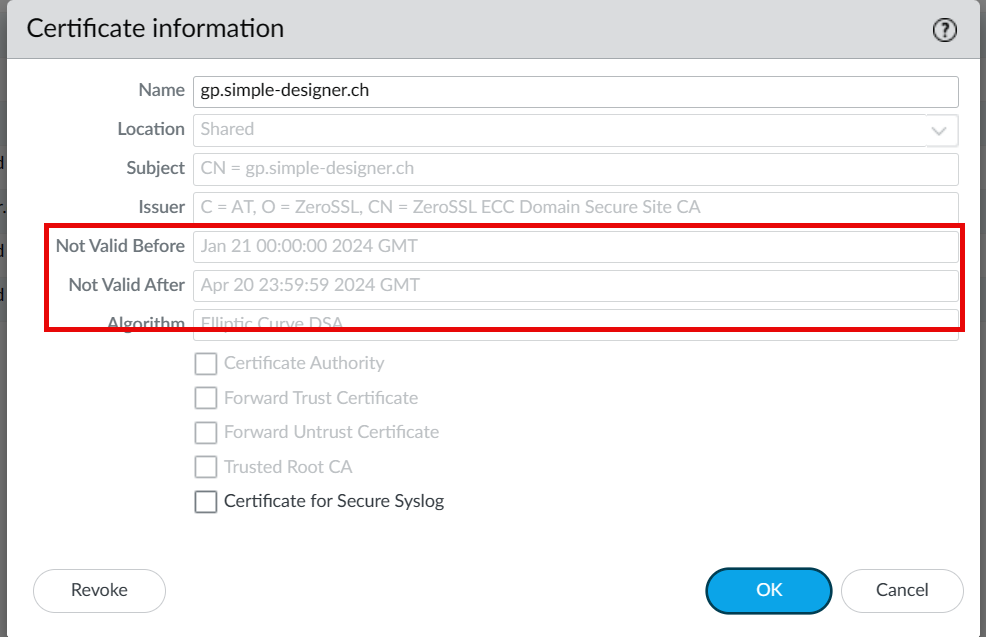
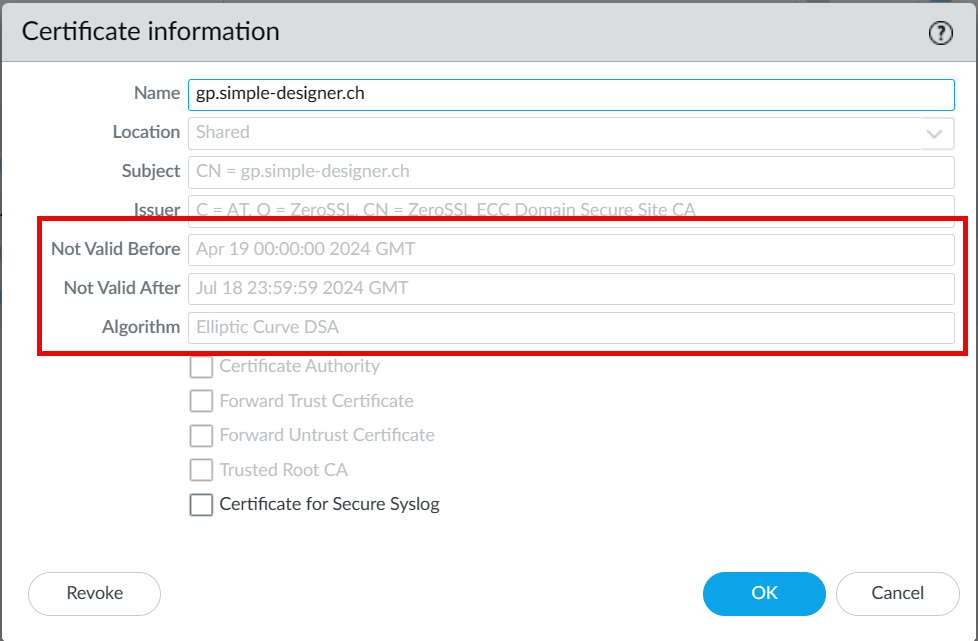
Create cronjob
administrator@myserver:~/.acme.sh$ crontab -e

0 3 1 1,3,5,7,9,11 * /home/yourusername/.acme.sh/cert_renew-simple-designer.sh
0 4 1 1,3,5,7,9,11 * /home/yourusername/.acme.sh/cert_renew-othercustomer.sh

administrator@myserver:~/.acme.sh$ sudo chmod +x /home/yourusername/.acme.sh/cert_renew-simple-designer.sh
Here’s the breakdown of this cron job:
0 3— The minute (0) and the hour (3), meaning the job will run at 3:00 AM.1— The day of the month, the 1st.1,3,5,7,9,11— The months (January, March, May, July, September, November), effectively every two months starting from January.- The last
*stands for “every day of the week”, which isn’t relevant here since the day of the month is specified. /home/yourusername/.acme.sh/cert_renew-simple-designer.sh
Ensure the path points to where your script is actually located. Replaceyourusernamewith your actual username.
Explanation of Scripts and Functions:
The Bash script automates the renewal and deployment of SSL/TLS certificates for the GlobalProtect portal using acme.sh.
- The
--issuecommand in the script is used to obtain or renew a certificate by utilizing the DNS challenge method, which in this case is configured for Cyon DNS. - The
--deploycommand applies the renewed certificate to the specified firewall via the Palo Alto Networks Operating System (PAN-OS) deployment hook, ensuring that the firewall uses the updated certificate. - The
--dnscommand is used to specify the DNS service provider for the DNS challenge.acme.shsupports numerous DNS providers, making it flexible for various configurations. - The
--dnssleep 300command delays the verification of the DNS TXT record for 300 seconds. This delay is useful to ensure that DNS changes have propagated fully before verification proceeds. - The
--insecurecommand is used when interfacing with the Palo Alto management GUI that has a self-signed certificate. This bypasses SSL certificate validation, useful in controlled environments where the authenticity of the connection is known. - Environment variables (
PANOS_USER,PANOS_PASS,PANOS_HOST_SIMPLE_DESIGNER) are set to ensure that the script uses the correct credentials and targets the appropriate firewall.